Proof Before Purchase
- Welcome and orientation.
- Selected announcements or public teaching.
- A clear view of the paid outcome and schedule.
- Member proof you have permission to share.
 PayBot
2026 Paid Discord Server Build Guide
Build roles, channels, pricing, a payment page, Stripe, and automatic access in one clear sequence from first offer to member entry.
New accounts run on your own Stripe with no monthly fee. PayBot earns only after a sale.
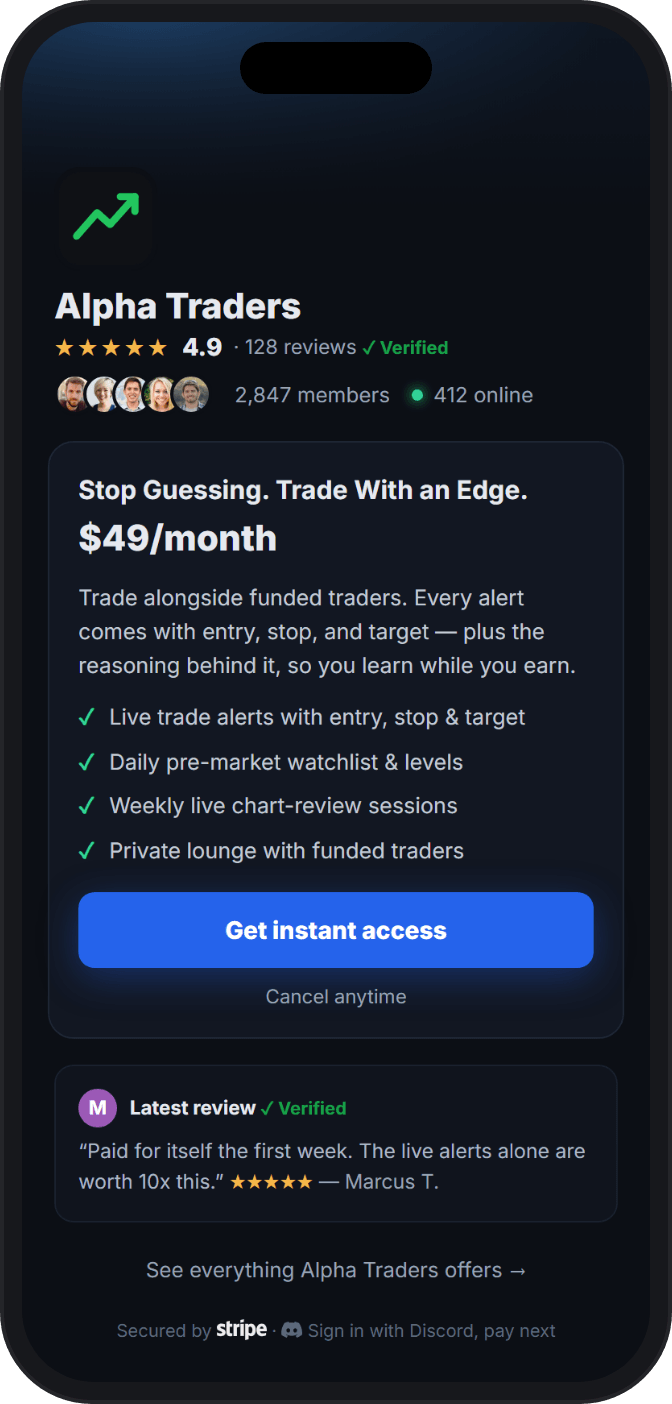
One Shared Plan
A member pays at 2 a.m. They open Discord and find the same public channels they had before checkout. Now the operator is searching payment records, checking usernames, and granting a role by hand.
That failure begins before checkout. The paid promise, role, channel boundary, and payment flow need one shared plan. Build them together and each new member lands where the offer said they would.
The Paid Boundary
Start with one offer for one right-fit member. Keep public proof visible and put the promised delivery behind the paid role.
If you still need to choose what to sell, use the Discord server monetization guide.
The Access Map
Set the role hierarchy, channel categories, and inherited permissions before you publish the payment page.
Top to bottom in Discord.
The PayBot role must sit above each role it assigns or removes.
Three categories cover most launches.
#welcome#announcements#general#start-here#resources#discussion#wins#vip-chat#private-resourcesvip-voiceLet channels inherit the access rule.
Test the public, Member, and VIP views before sharing the payment link.
Pricing and Launch
Use the work, access, and delivery rhythm to set the first price. These bands are planning inputs. Your audience and offer decide the final number.
$5 to $15 monthly
For paid value centered on belonging, recognition, and member-only spaces.
$29 to $99 monthly
For ongoing analysis, resources, coaching, or instruction.
$199 to $999 monthly
For substantial direct access and high-touch guidance.
$200 to $2,000 one-time
For a defined curriculum, delivery window, and completion point.
Launch Sequence
Tell current members what remains public, what moves behind the paid role, and when the change takes effect.
Explain the result, delivery rhythm, starting point, and access included. Give members enough detail to judge the fit.
Bring in a manageable first group you can support closely. Set the terms plainly and skip artificial scarcity.
Ask what changed, what they used, and what felt unclear. Publish only feedback you can verify and share.
The Operating Layer
The access map is ready. Connect the sale to it while customer payments, records, and payouts stay in your Stripe.
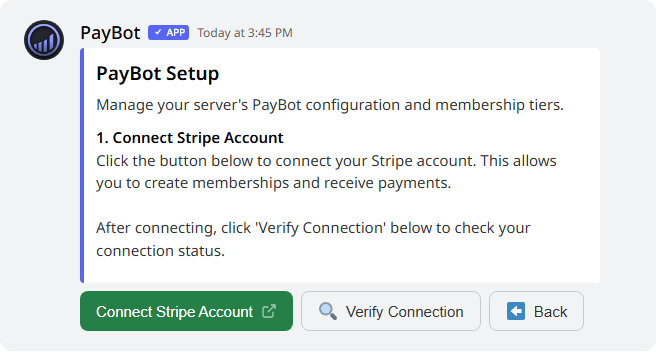
Real Product Proof
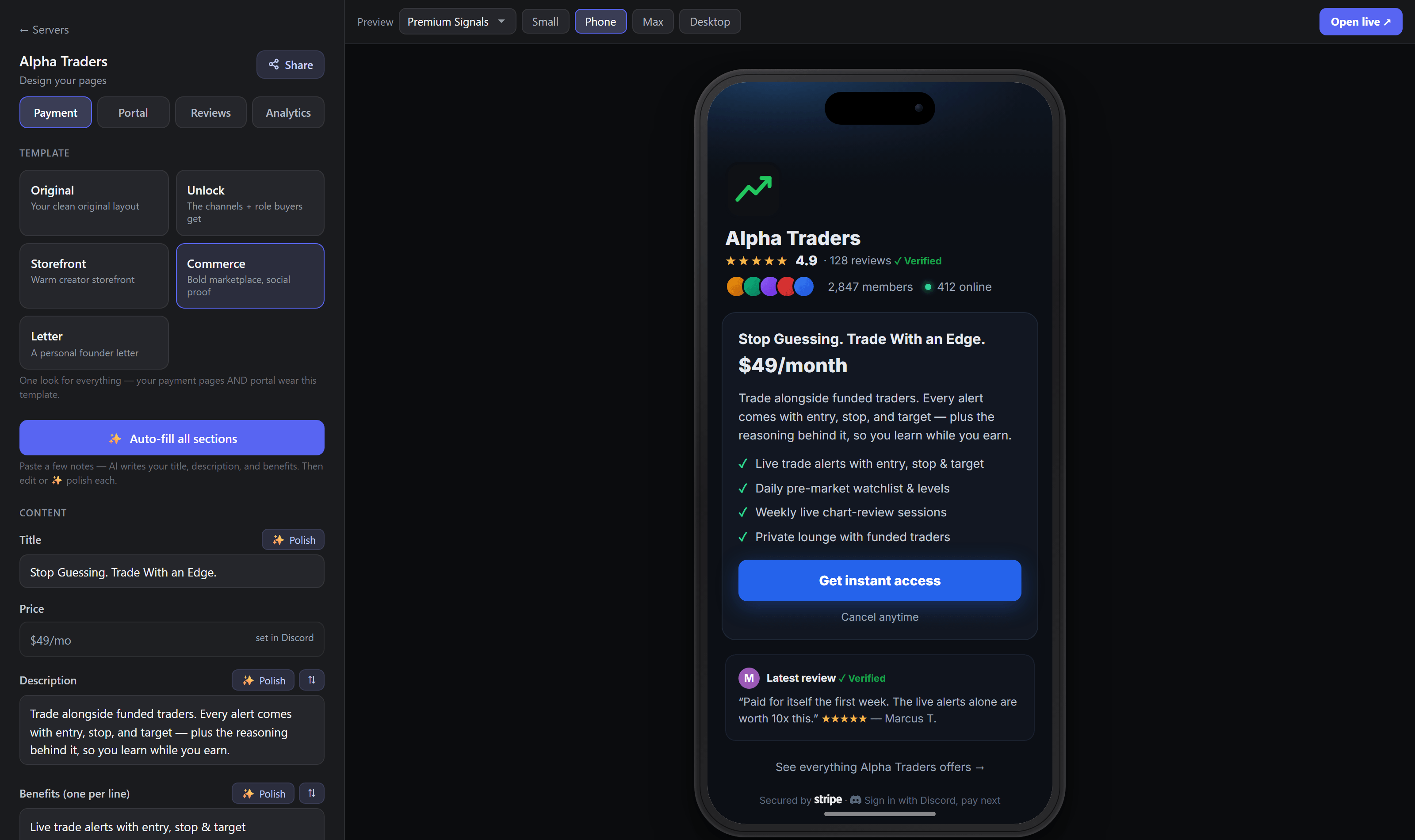
Studio page styles and editable blocks help present the paid promise with the depth it deserves.
Keep the promise, price, benefits, and verified subscriber proof close together.
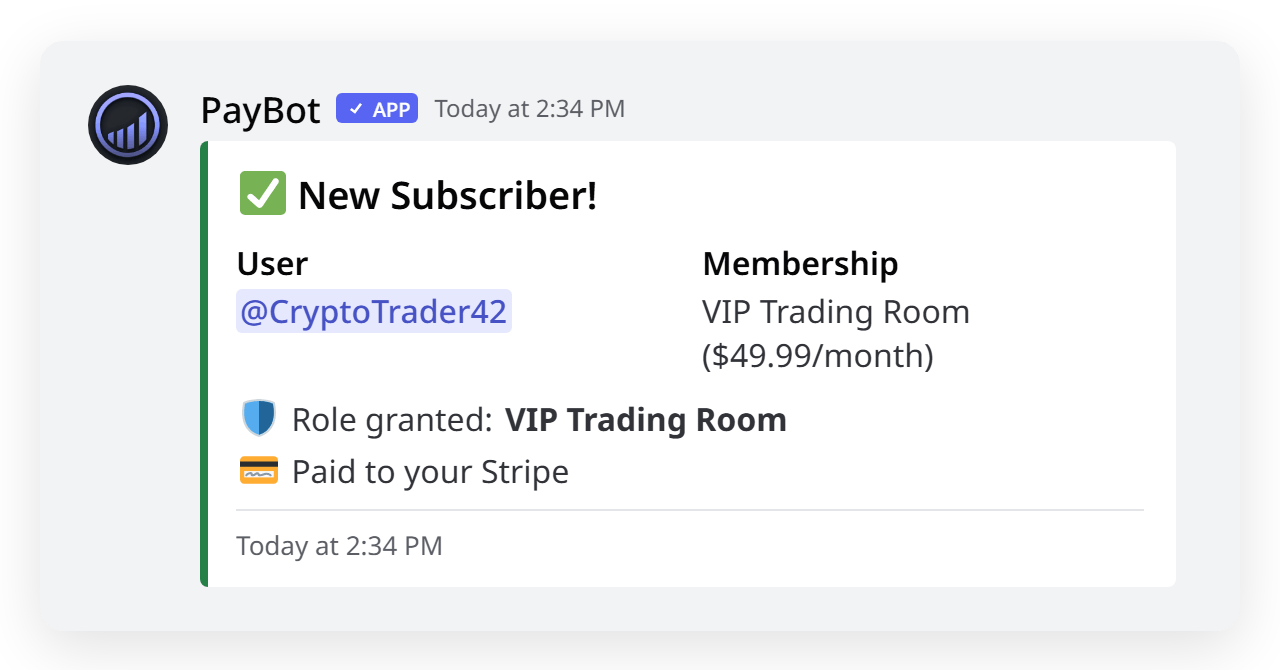
The subscriber notification shows the completed payment with the member and linked role.

"PayBot simplified our entire subscription process. We set it up in minutes and now manage over 200 premium members effortlessly."Daniel, Active Stacks Community · 210 members
Before the First Sale
New accounts have no monthly fee. PayBot earns about 3% on successful sales. Stripe processing costs apply separately based on your account and payment method.
You can launch without one. PayBot hosts your portal and payment pages, so you can share the finished link from Discord, email, social profiles, or a site you already own.
Yes. Start with one role and one price. Add another tier when buying behavior shows a clear reason for different access, attention, or delivery.
When the subscription is deleted, PayBot removes the linked paid role. The Stripe billing state remains the source for that access change.
The subscription stays past due while Stripe retries. The member keeps access for the grace period you set, 7 days by default, and loses the role if the payment has not recovered by then.
Yes. PayBot supports Stripe free trials. State the charge date and access terms clearly, then test the checkout and role journey before sharing the offer.
Payments run through your own Stripe account. Customer, payment, and payout records stay there while PayBot links each completed checkout to Discord access.
PayBot does not ship Stripe Tax or VAT automation. Set your tax process with a qualified adviser and configure any required collection outside PayBot.
Related Reading
Deeper guides on tier design, niche strategies, and pricing models for paid Discord communities.
Your Paid-Server System
Your offer, access map, payment page, and member role now work as one system. Add PayBot and run the paid side from the Discord your members already use.
Your Stripe. Automatic access. Free until a member pays.