Stripe Migration
Already collecting payments through Stripe? Import your existing subscribers, assign Discord roles by product, and connect everyone to your server — without disrupting a single subscription.
Table of Contents
Who Is This For?
This feature is for server admins who already have paying subscribers on Stripe — whether from a platform like LaunchPass, Memberful, or from their own Stripe payment links.
🔄 Migrating from LaunchPass / Memberful
You own your Stripe account. Your subscribers, payment methods, and revenue stay with you. PayBot takes over Discord role management so you can stop paying percentage fees.
💳 Using Stripe Payment Links
You've been using Stripe's built-in checkout (buy.stripe.com) or custom payment flows. Your subscribers are paying but don't have Discord roles — PayBot bridges that gap.
Key insight: If you're using LaunchPass or Memberful, you already own your Stripe account and all subscriber data. Migrating to PayBot means your subscribers keep paying the same way — they won't even notice the switch. You just stop sharing revenue with the middleman.
How It Works
PayBot scans your connected Stripe account, finds subscriptions it doesn't already track, and imports them grouped by product. You then assign a Discord role to each product and send setup emails so subscribers can connect their Discord account.
The flow:
- Connect your Stripe account via
/setup - Enable Stripe Sync in
/manage - PayBot imports untracked subscriptions, grouped by Stripe product
- You assign a Discord role to each product group
- You send setup emails — subscribers click to connect their Discord
- Once connected, they get their role automatically
Step-by-Step Guide
Connect Your Stripe Account
Run /setup in your Discord server and connect your Stripe account through the OAuth flow. This is the same Stripe account your subscribers are already paying into.
/setup → Connect StripeEnable Stripe Sync
Run /manage and enable the Stripe Sync toggle. This tells PayBot to scan for subscriptions on your Stripe account that it doesn't already manage.
/manage → Stripe Sync → EnableView Your Imported Subscribers
After syncing, click "Needs Setup" in the /manage dashboard. You'll see your Stripe subscribers grouped by product.
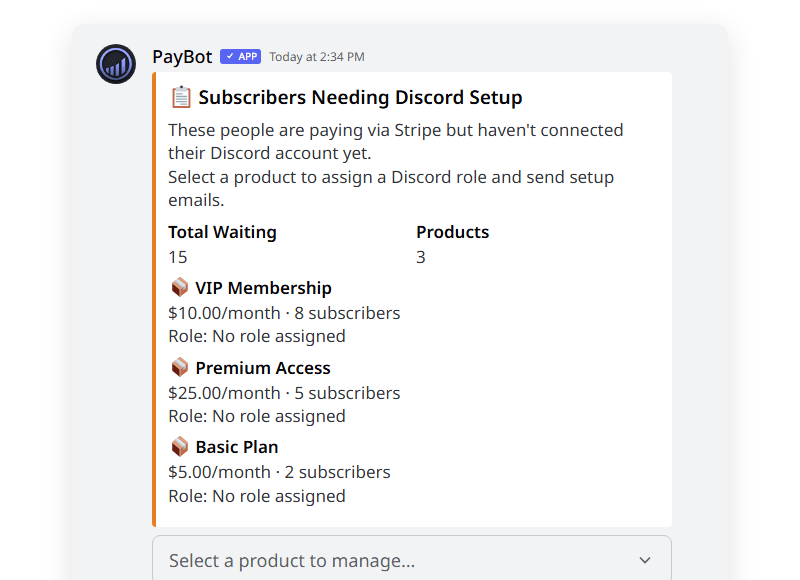
Subscribers are automatically grouped by Stripe product — showing count, price, and role status for each group.
Select a Product Group
Use the dropdown to select a product. You'll see the full list of subscribers with their names and email addresses, along with action buttons.
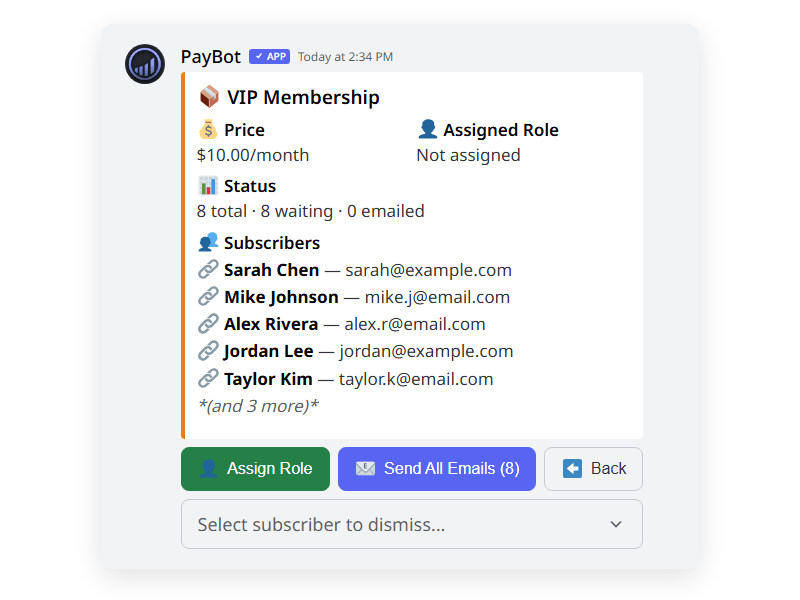
The detail view shows each subscriber's name and email, plus buttons to assign a role and send setup emails.
Assigning Discord Roles
Each Stripe product gets mapped to a Discord role. When a subscriber connects their Discord account, they automatically receive the role for their product.
Click "Assign Role"
From the product detail view, click the green Assign Role button. PayBot shows a dropdown of your server's roles.
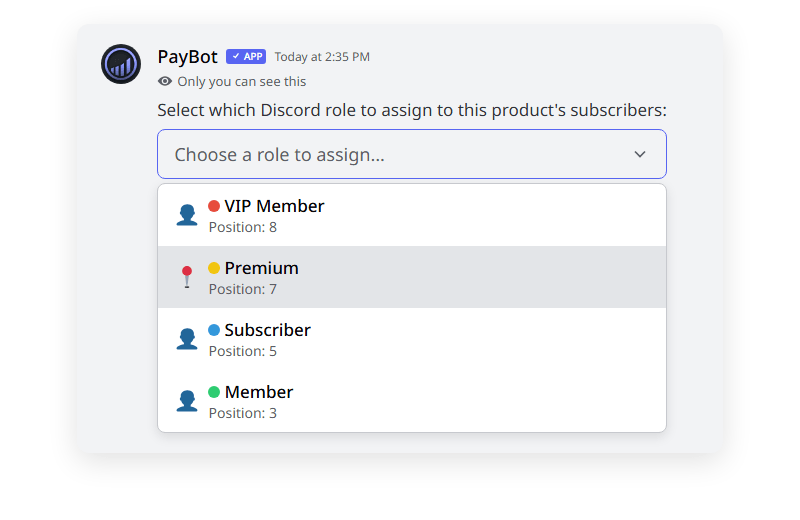
Select which Discord role subscribers of this product should receive.
Role Applied to All Subscribers
The role assignment applies to every subscriber in that product group — not just one at a time. This is what makes it fast: one click covers all subscribers for that product.
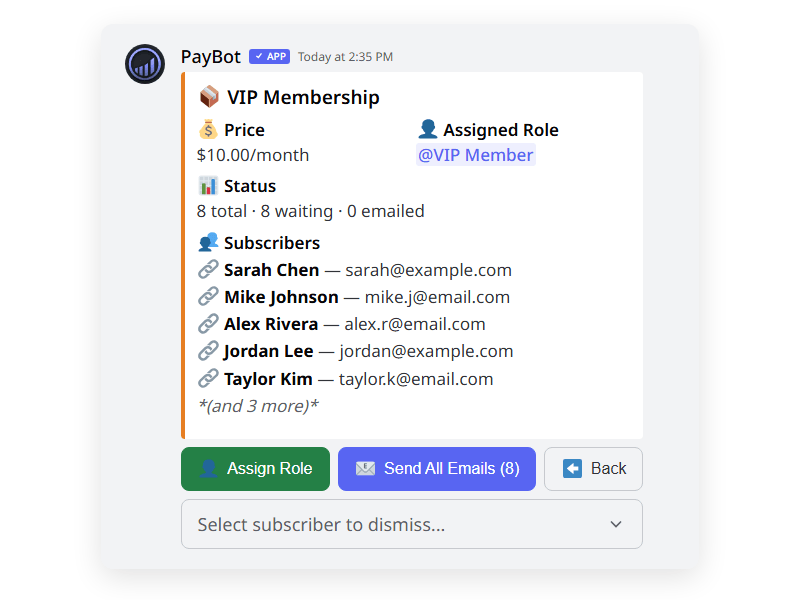
After assignment, the role is shown next to the product. New subscribers who sync into this product automatically inherit the role.
Auto-inheritance: When new subscribers are detected for a product that already has a role assigned, they automatically get the same role mapping. You only need to assign the role once per product.
Sending Setup Emails
After assigning roles, send setup emails to let subscribers connect their Discord account.
Click "Send All Emails"
The blue Send All Emails button sends a personalized email to every subscriber in that product group who hasn't been emailed yet. Each email contains a unique link to connect their Discord account.
Subscribers Connect Their Discord
When a subscriber clicks the link in their email, they authenticate with Discord. PayBot then:
- Links their Discord account to their Stripe subscription
- Adds them to your server (if not already a member)
- Grants them the assigned Discord role
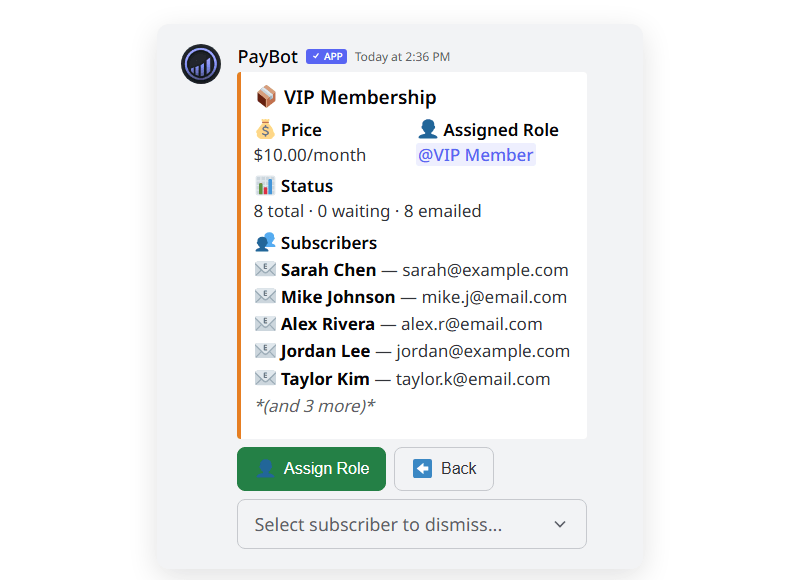
After sending, the status updates to show how many subscribers have been emailed. The 📧 icon indicates an email was sent.
Email links expire in 7 days. If a subscriber doesn't connect in time, you can re-send from the /manage dashboard.
Handling New Subscribers
Once Stripe Sync is enabled, PayBot automatically captures new subscriptions created on your Stripe account — even if they didn't come through PayBot's checkout.
🔄 Automatic Detection
New subscriptions appear in the "Needs Setup" dashboard automatically. If the subscriber's product already has a role assigned, the mapping is inherited.
📧 Ongoing Webhook Capture
PayBot listens for Stripe webhook events on your connected account. New subscriptions, cancellations, and payment updates are all tracked in real time.
Migrating from LaunchPass
LaunchPass charges 3-5% per transaction and forces you to set up external join pages — adding complexity to something that should be simple. Since you own your Stripe account, you can switch to PayBot without disrupting any subscriptions.
Why this works: LaunchPass uses Stripe Connect — they connect to your Stripe account, not theirs. When you disconnect LaunchPass, your subscribers keep paying you directly. PayBot handles everything inside Discord — and automatically generates a payment page and direct checkout links for every tier. Just drop a link on your website or bio.
Migration Steps
Connect Stripe & Import
Connect your Stripe account to PayBot and enable Stripe Sync. PayBot imports all active subscriptions that it doesn't already manage.
Assign Roles & Send Emails
Map each Stripe product to a Discord role and send setup emails. Subscribers click the link to connect their Discord — takes 30 seconds.
Wait for Connections
Give subscribers a few days to connect. Monitor progress in the /manage dashboard — you can see who's connected and who still needs to.
Disconnect LaunchPass
Once everyone is connected through PayBot, disconnect LaunchPass from your Stripe account. Their percentage fees stop immediately. Your subscribers continue paying you directly.
Savings Calculator
Here's what you save by switching from a percentage-based platform:
| Subscribers | Avg Price | LaunchPass (5%) | Annual Savings |
|---|---|---|---|
| 15 | $15/mo | $11.25/mo | $135/year |
| 50 | $15/mo | $37.50/mo | $450/year |
| 100 | $20/mo | $100.00/mo | $1,200/year |
| 500 | $20/mo | $500.00/mo | $6,000/year |
FAQ
Will my subscribers lose access during migration?
No. Their Stripe subscriptions continue uninterrupted. The only change is who manages their Discord role — switching from LaunchPass to PayBot. Run both platforms simultaneously during the transition.
Do subscribers need to re-enter their payment info?
No. Their subscriptions stay on your Stripe account exactly as they are. No re-checkout required.
What if a subscriber doesn't click the setup email?
You can re-send the email from the /manage dashboard. Links expire after 7 days, but you can generate new ones at any time.
Can I assign the same role LaunchPass was using?
Yes! If LaunchPass assigned @VIP to subscribers of your $10/mo product, you can assign the same @VIP role in PayBot. The transition is seamless.
What happens to new subscribers during the transition?
With Stripe Sync enabled, PayBot captures all new subscription events on your Stripe account via webhooks. New subscribers appear in the "Needs Setup" dashboard automatically and inherit the role mapping you've already set up.
Does this work with Whop or Patreon?
Currently, Stripe Migration works best with platforms where you own the Stripe account (LaunchPass, Memberful, direct Stripe). Platforms like Whop and Patreon own the billing relationship, making migration more complex.