Revenue Sharing
Share subscription revenue with your community managers — set custom percentages, track payouts, and manage your team directly from Discord
Table of Contents
Overview
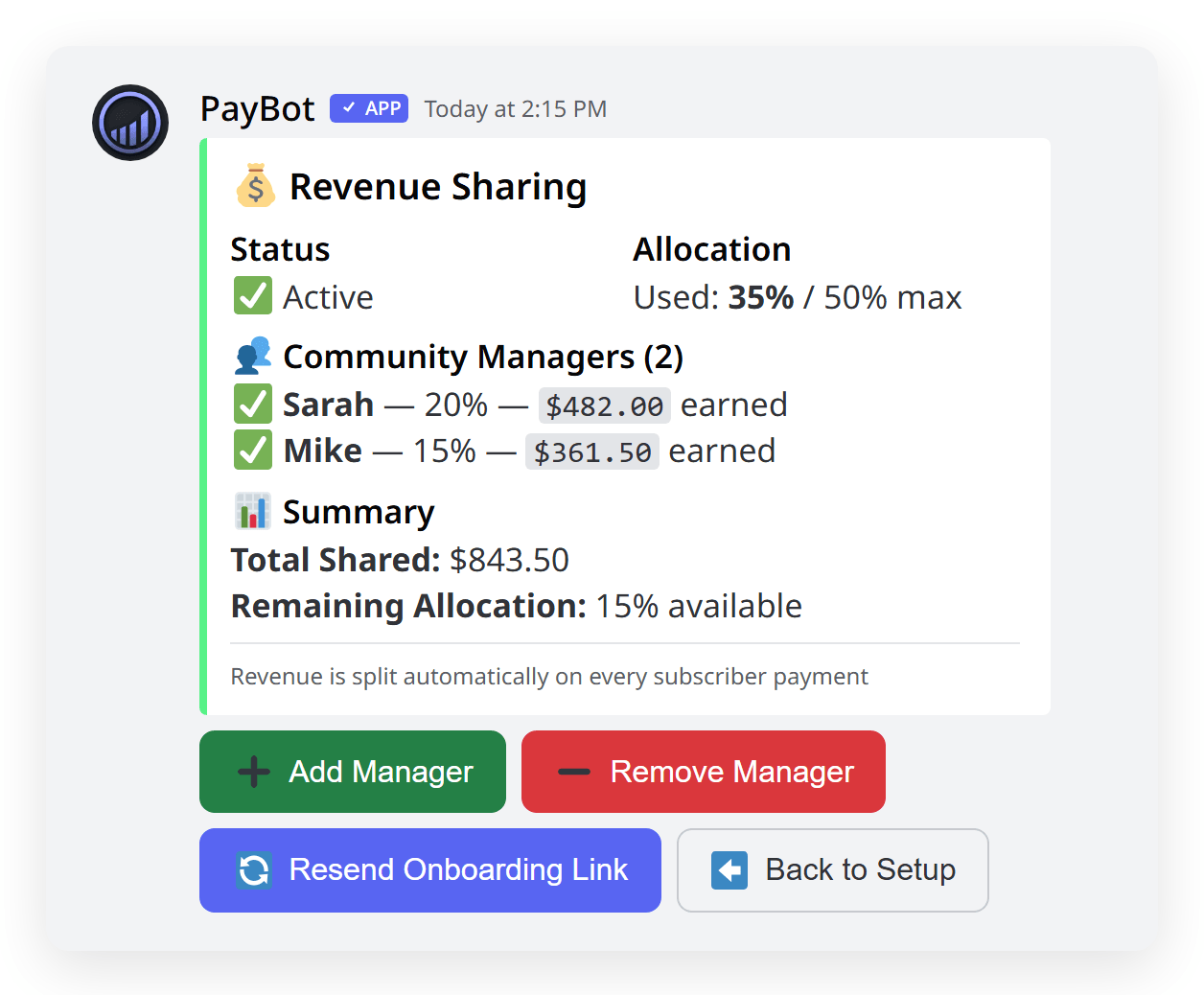
Revenue sharing lets you automatically split subscription income with your community managers. When a subscriber pays, PayBot calculates each manager's share and transfers it directly to their bank account via Stripe Express — no manual payouts needed.
💰 Automatic Splits
Each payment is automatically split based on the percentages you set
🏦 Direct Payouts
Managers receive funds directly to their bank via Stripe Express
📊 Transparent Tracking
See each manager's total earned and allocation at a glance
Prerequisites
Plan Requirement
Revenue sharing requires the Ultra plan. You also need a connected Stripe account and at least one active membership tier.
Before setting up revenue sharing, make sure you have:
- A connected Stripe account (via
/setup) - At least one active membership tier with subscribers
- The Discord User IDs of the managers you want to add
How to get a User ID: Enable Developer Mode in Discord (User Settings → Advanced → Developer Mode), then right-click a user and select "Copy User ID".
Adding a Community Manager
Server admins add community managers through the setup dashboard. Each manager gets their own Stripe Express account for receiving payouts.
Open /setup
Run /setup in your server and click "Manage Revenue Sharing".
/setup → Manage Revenue SharingClick "Add Manager"
Click the ➕ Add Manager button. A modal dialog will appear asking for the manager's details.
Enter Manager Details
Fill in the modal with:
- Manager's Discord User ID — the numeric ID (e.g.,
123456789012345678) - Revenue Share Percentage — between 1% and 50% (default is 15%)
Example: A 15% share on a $20/mo tier means the manager earns $3.00 per subscriber per month — on every renewal.
Manager Receives Onboarding DM
PayBot sends the manager a DM with a Stripe Express onboarding link. They must complete Stripe's onboarding before payouts can begin.
Stripe Express Account: When you add a manager, PayBot creates a Stripe Express account for them. This is how revenue splits are tracked and paid out through Stripe Connect — fully automated.
Manager Onboarding
After being added, each manager must complete Stripe's onboarding process to receive payouts.
Manager Opens DM
The manager receives a DM from PayBot with the subject "You've Been Added as a Community Manager!" and a link to begin Stripe onboarding.
Complete Stripe Onboarding
The manager clicks the link and follows Stripe's Express onboarding flow — entering their name, bank details, and verifying their identity. This typically takes 2-3 minutes.
Status Updates Automatically
Once onboarding is complete, PayBot marks the manager as active. Their status changes from ⏳ Pending to ✅ Active in the dashboard.
Link Expiration
Stripe onboarding links expire after a short period. If a manager's link expires, use the 🔄 Resend Onboarding Link button in the revenue sharing dashboard to send a fresh one.
Manager Status Icons
✅ Active
Stripe onboarding complete. The manager will receive their share of every payment automatically.
⏳ Pending
Waiting for the manager to complete Stripe onboarding. Payments are tracked but not transferred until onboarding is done.
Limits & Allocation
Revenue sharing has built-in safeguards to protect your earnings.
📊 Total Allocation Cap
The combined revenue share across all managers cannot exceed 50% of subscription revenue. This ensures you always retain at least half of every payment.
Example: If you have 3 managers at 15% each (45% total), you can only add one more at up to 5%.
👤 Per-Manager Range
Each individual manager can be set between 1% and 50%. The default suggestion is 15%, but you choose what's right for each person.
Tip: You can have as many managers as you want, as long as the total stays under 50%.
How Splits Are Calculated
When a subscriber pays, here's what happens:
- Subscriber pays: $20.00
- Stripe processing fee: ~$0.88 (2.9% + $0.30)
- PayBot platform fee: Deducted from total
- Manager A (15%): Receives $3.00 via Stripe Transfer
- Manager B (10%): Receives $2.00 via Stripe Transfer
- You keep: The remainder after fees and splits
Removing Managers
You can deactivate a community manager at any time.
In /setup → Manage Revenue Sharing, click ➖ Remove Manager.
Select the manager to remove from the dropdown.
Confirm the removal. The manager is deactivated immediately.
What happens after removal:
- Future payments stop being split to this manager
- Any pending payouts are still processed
- Historical earnings data is preserved
- Their allocation percentage is freed up for other managers
Troubleshooting
Manager didn't receive the onboarding DM
Cause: The manager may have DMs disabled for the server or globally.
Solution: Ask the manager to enable DMs from server members (Server Settings → Privacy Settings → Allow direct messages). Then use 🔄 Resend Onboarding Link.
Manager's onboarding link expired
Cause: Stripe Express onboarding links expire after a short period.
Solution: Click 🔄 Resend Onboarding Link in the revenue sharing dashboard to send a fresh link.
"Manage Revenue Sharing" button not showing
Cause: Revenue sharing requires the Ultra plan.
Solution: Upgrade to Ultra in /setup → Manage Plan to unlock revenue sharing.
Can't add manager — allocation exceeded
Cause: The total revenue share across all managers would exceed the 50% cap.
Solution: Reduce an existing manager's percentage or remove a manager to free up allocation before adding a new one.
Manager shows as "Pending" for a long time
Cause: The manager hasn't completed Stripe onboarding.
Solution: Remind the manager to check their DMs for the onboarding link and complete the Stripe Express signup. If the link expired, resend it.
Still need help? Join our support Discord for assistance.