Reports & Notifications
Track your subscription activity with detailed reports, real-time notifications, and portal analytics — all from Discord
Table of Contents
Overview
PayBot gives you two ways to stay on top of your subscription activity: on-demand reports with the /reports command, and real-time notifications sent to a dedicated Discord channel.
📊 Subscriber Reports
View active subscribers per tier with member details and payment info
🔔 Real-Time Notifications
Get instant alerts for new subs, cancellations, and payment failures
📈 Portal Analytics
Track page views, tier clicks, and conversion funnels
Available on all plans: Reports, notifications, BCC email, and portal analytics are included on every PayBot plan — including Free.
Viewing Reports
The /reports command gives you a detailed breakdown of your active subscribers, organized by membership tier.
/reportsWhat You'll See
The report shows each tier with:
- Tier name, price, and billing interval (monthly, yearly, one-time)
- Assigned Discord role for the tier
- Active subscriber list with usernames and server membership status
- Pagination for tiers with many subscribers (20 per page)
Admin only: The /reports command is restricted to server administrators.
Navigating Reports
Use the tier dropdown to switch between tiers, and the pagination buttons to browse subscribers within a tier. The response is ephemeral — only you can see it.
Setting Up a Notification Channel
Configure a dedicated Discord channel to receive real-time subscription notifications.
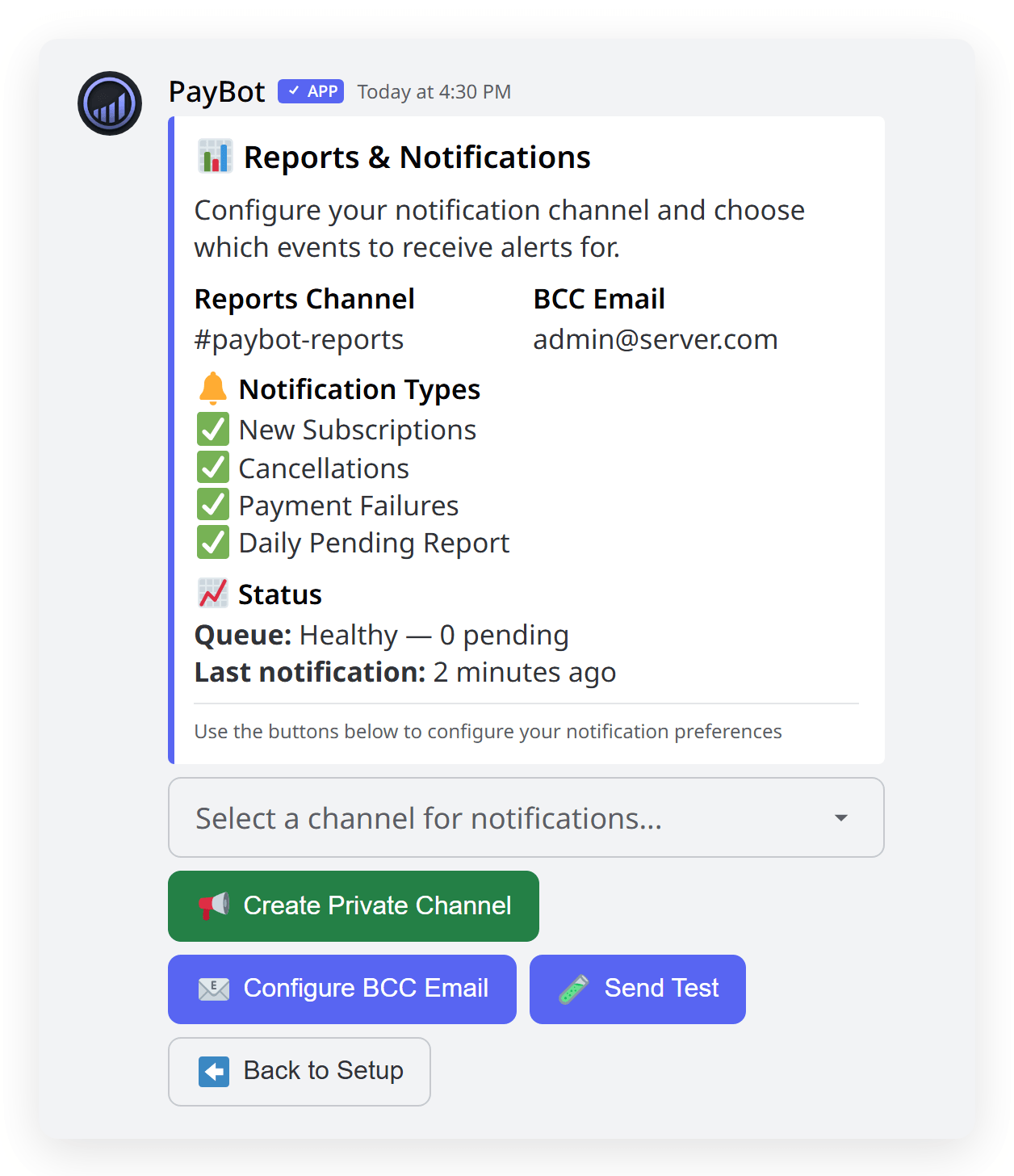
Open /setup
Run /setup in your server and click "Reports & Notifications".
/setup → Reports & NotificationsChoose a Channel
You have two options:
- Select existing channel — pick any text channel from the dropdown
- Create private channel — PayBot creates a
#paybot-reportschannel hidden from @everyone, visible only to you and the bot
Recommended: Use the auto-created private channel to keep subscription data out of public view.
Enable Notification Types
Toggle which events you want to be notified about. See the next section for details on each type.
Notification Types
PayBot supports four notification toggles. Enable the ones that matter to your workflow.
✅ New Subscriptions
Triggered when a user purchases or joins a membership tier. Includes the subscriber's name, tier, and payment amount.
❌ Cancellations
Triggered when a subscriber cancels. Shows who cancelled and which tier, so you can follow up or track churn.
⚠️ Payment Failures
Triggered when a payment is declined or fails. Helps you identify subscribers who may lose access soon.
📋 Daily Pending Report
A daily digest (sent around 12:30 AM UTC) listing users who have paid but haven't joined your Discord server yet. Helps you follow up with users who may need the invite link.
All toggles are independent. Enable any combination that works for you. Most server owners enable all four.
BCC Email
Get a copy of every invitation email PayBot sends to new payment link subscribers, delivered straight to your inbox.
What It Does
When someone subscribes via a payment link, PayBot sends them an invitation email with a link to join your Discord server. With BCC enabled, you receive a copy of that email so you know exactly when someone signs up — even when you're away from Discord.
Setting Up BCC
In /setup → Reports & Notifications, click "Configure BCC Email".
Enter your email address in the modal dialog.
You'll now receive a BCC copy of every subscriber invitation email.
To disable: Open the BCC email modal again and clear the field. Leave it blank to stop receiving copies.
Portal Analytics & Funnel
Track how visitors interact with your portal page and where they drop off in the checkout process.
Accessing Analytics
/setup → Portal AnalyticsFunnel Metrics
PayBot tracks a 4-step conversion funnel for each tier:
Visitor clicks a tier on your portal page
Visitor logs in with Discord
Visitor opens the Stripe checkout page
Visitor completes payment
Dashboard Features
📅 Time Range Selector
View data for the last 7, 30, or 90 days
🎯 Per-Tier Breakdown
See funnel numbers for each tier individually or as an overview
📈 Trend Graphs
Visual charts showing daily trends for each funnel step
🔗 Link Click Stats
Track clicks on any URL blocks in your portal
Optimize your funnel: If you see a big drop between "Tier Click" and "OAuth Complete", consider simplifying your tier descriptions. A drop between "Checkout Start" and "Conversion" may indicate pricing concerns.
Testing & Status
Verify your notification setup is working correctly.
Send a Test Notification
In the Reports & Notifications config, click the Test button. PayBot sends a sample notification to your configured channel so you can confirm everything is connected.
Check Status
The status view shows:
- Reports channel — which channel is configured
- Enabled notification types — which toggles are active
- BCC email — the configured email address (if any)
- Queue status — current notification backlog
Troubleshooting
Not receiving notifications
Check these in order:
- Verify a reports channel is set (
/setup→ Reports & Notifications) - Confirm the notification types you want are toggled on
- Check that PayBot has "Send Messages" permission in the reports channel
- Send a test notification to verify the channel is reachable
Daily pending report not showing up
Cause: The report only sends when there are pending subscribers (users who paid but haven't joined your server).
Solution: If all your subscribers have joined, no report is sent. The report runs daily around 12:30 AM UTC.
BCC emails not arriving
Check:
- Verify the email address is correct in the BCC config
- Check your spam/junk folder
- BCC only triggers for payment link subscribers (not in-Discord
/subscriptionpayments)
Portal analytics showing zero data
Cause: Analytics only track portal page visits. If nobody has visited your portal, there's no data to show.
Solution: Share your portal link and check back after visitors have interacted with it. Data populates in real time.
Still need help? Join our support Discord for assistance.