Automations
Trigger custom actions when someone subscribes or cancels. Send emails, grant course access, update spreadsheets—automatically.
Table of Contents
What are Automations?
Automations let PayBot send data to external services whenever a subscription event happens. When someone subscribes or cancels, PayBot instantly sends their information to your webhook URL.
🎯 The Problem
You want to do more than just assign Discord roles when someone subscribes—send welcome emails, add them to your course platform, update a spreadsheet, or trigger custom workflows.
✨ The Solution
Connect PayBot to Zapier, Make, n8n, or your own server. Every new subscriber or cancellation triggers your custom automation.
How it works:
- You paste a webhook URL from Zapier/Make into PayBot
- Someone subscribes to your Discord server
- PayBot instantly sends subscriber data to your webhook
- Zapier/Make receives the data and runs your automation
- Your subscriber gets an email, course access, or whatever you configured!
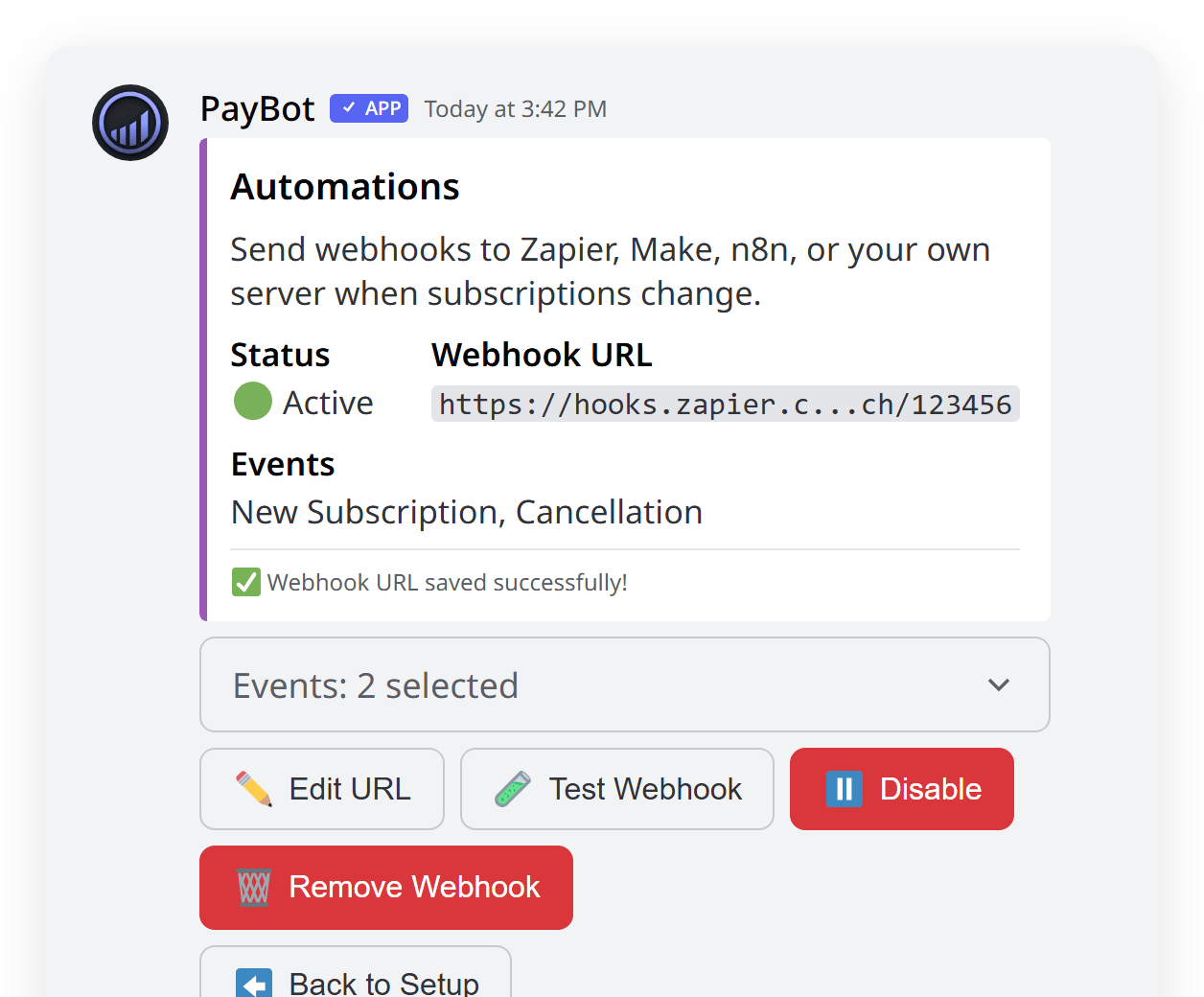
Available Events
🎉 subscription.created
Fires when someone completes a payment and becomes a subscriber. Includes their Discord info, email, tier details, and payment amount.
❌ subscription.cancelled
Fires when a subscription ends (cancelled or payment failed). Includes how long they were subscribed.
Getting Started
Set up automations in under 5 minutes.
Requirements: Automations are available on all paid PayBot plans (Small, Large, Ultra).
Open Automations Settings
Run /setup in your Discord server, select Settings from the dropdown, then choose Automations.
/setup → Settings → AutomationsGet Your Webhook URL
Create a webhook in your automation tool (Zapier, Make, etc.) and copy the URL. See the Zapier setup guide below for step-by-step instructions.
Add Webhook URL
Click "Add Webhook URL" in PayBot and paste your webhook URL.
Select Events
Choose which events to receive: new subscriptions, cancellations, or both.
Test Your Webhook
Click "Test Webhook" to send a sample payload and verify your automation receives it correctly.
Setting Up with Zapier
Follow these steps to connect PayBot to Zapier. The process is similar for Make, n8n, and other automation tools.
Create a New Zap
In Zapier, click "Create Zap" and search for "Webhooks by Zapier" as your trigger app.
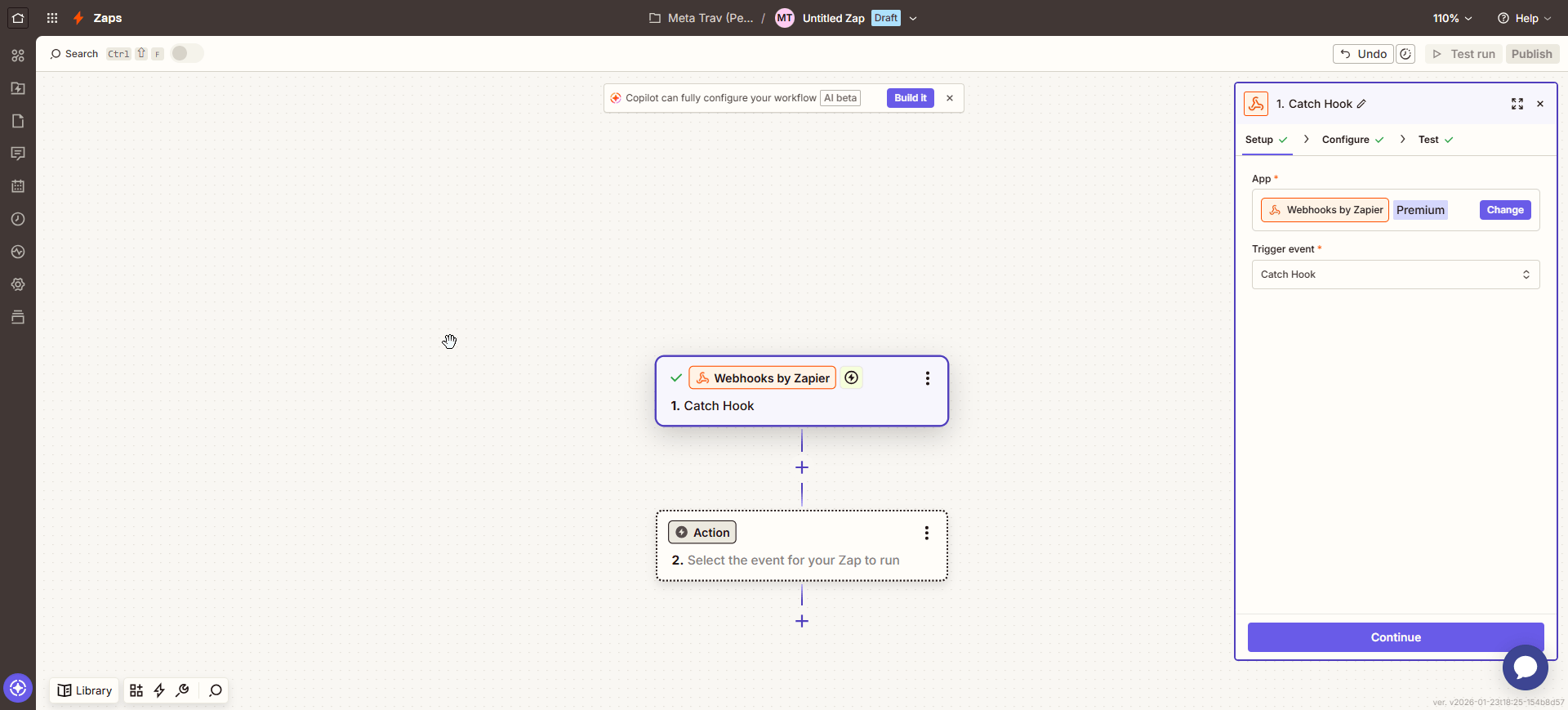
Select "Catch Hook"
Choose "Catch Hook" as the trigger event. This receives data from PayBot when events occur.
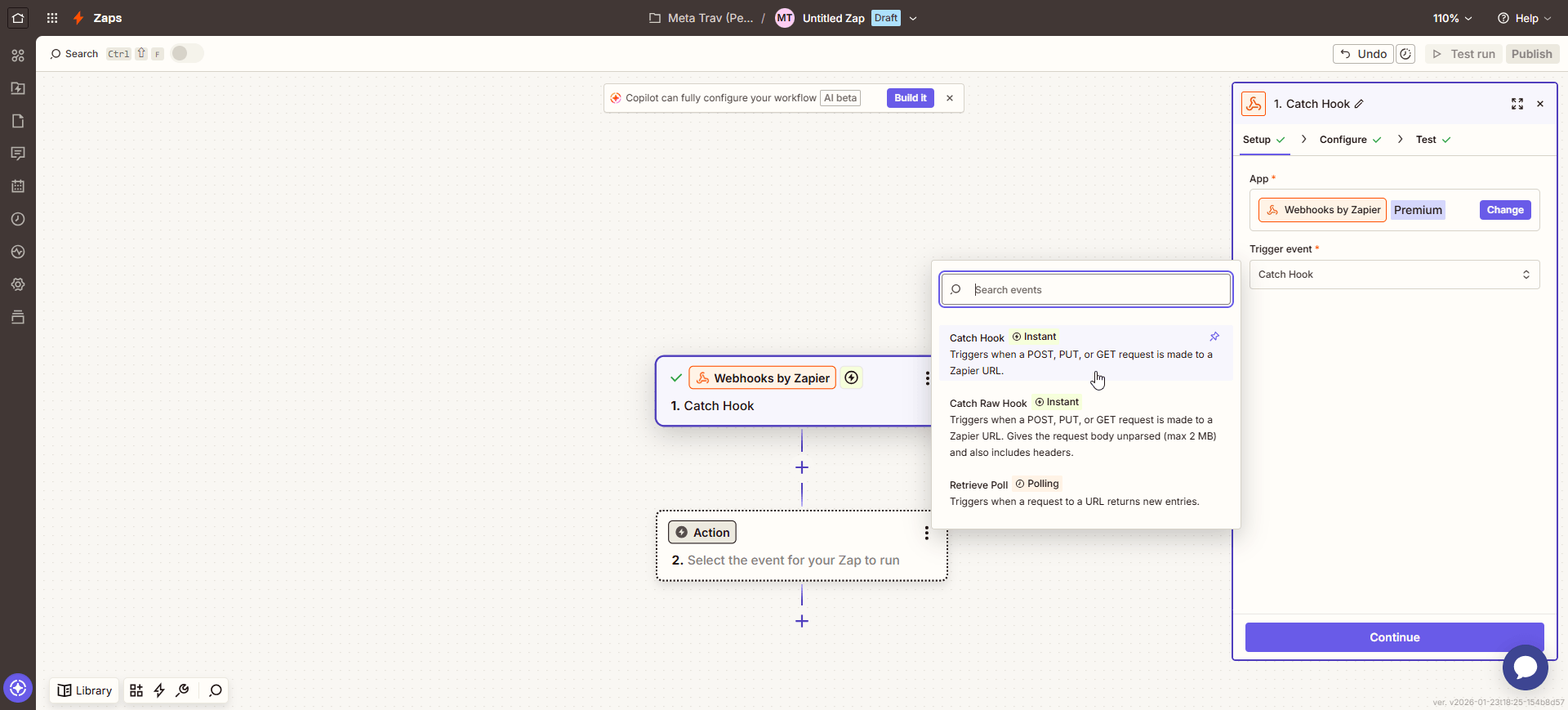
Configure the Trigger
Skip the "Pick off a Child Key" step—PayBot sends structured JSON that Zapier will parse automatically.
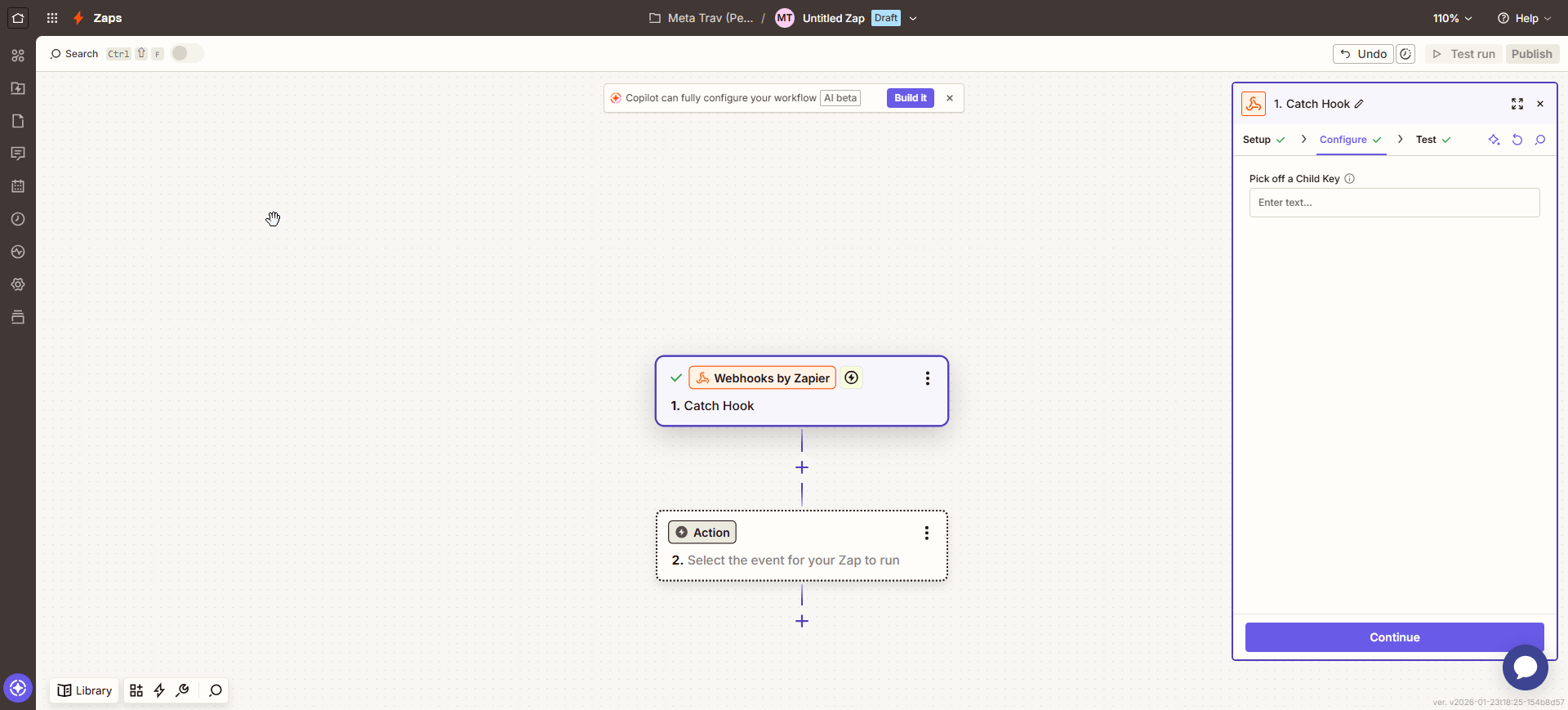
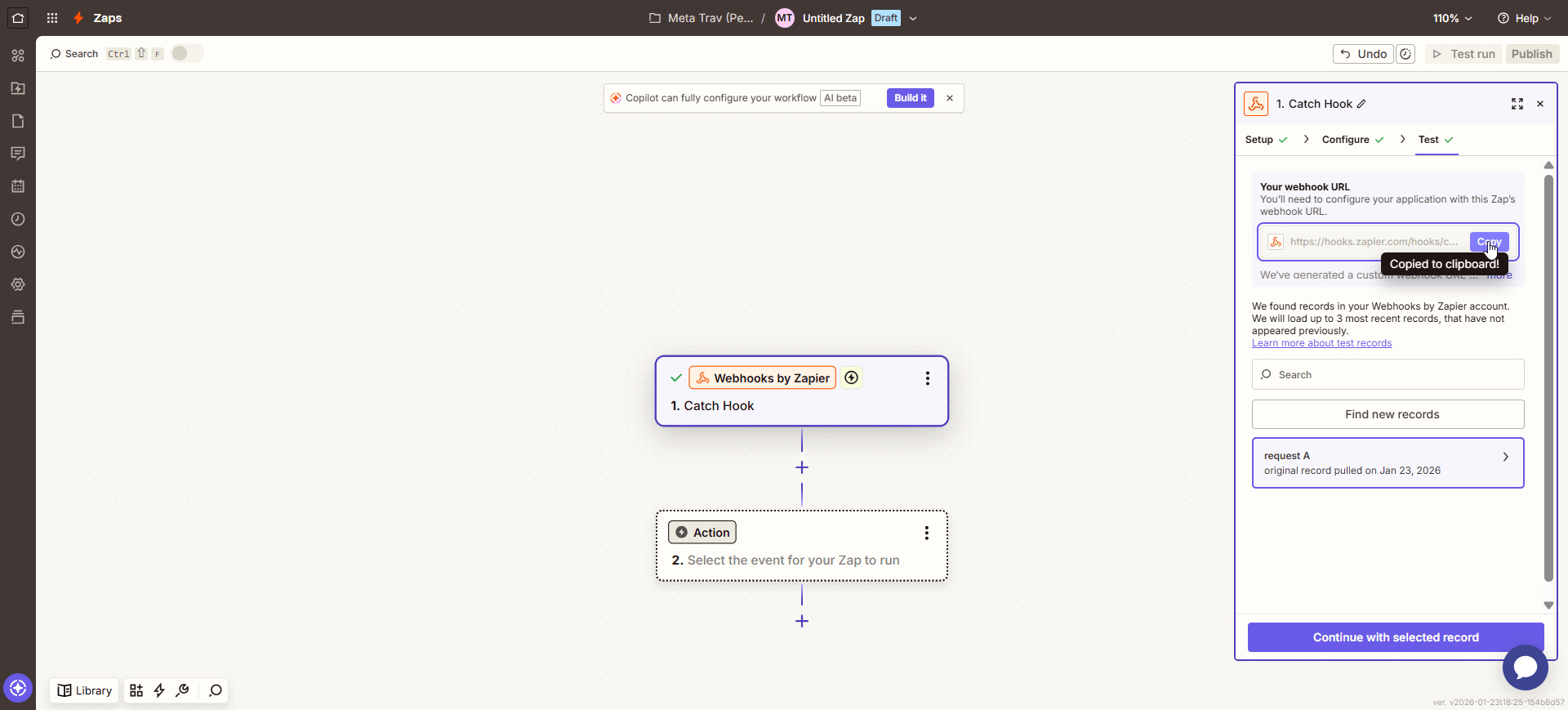
Copy Your Webhook URL
Zapier generates a unique webhook URL. Click "Copy" to copy it to your clipboard. This is the URL you'll paste into PayBot.
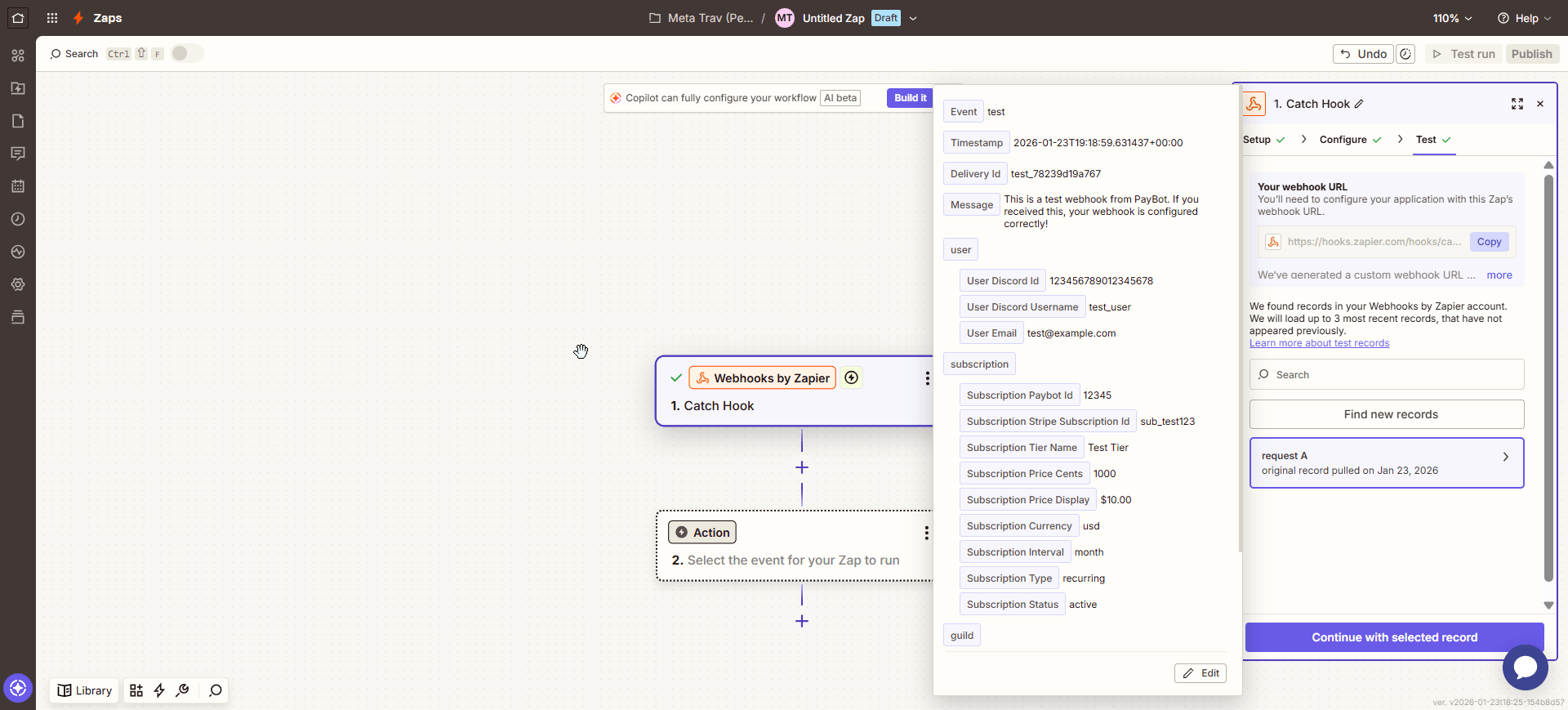
Test & View Data
After pasting the URL in PayBot and clicking "Test Webhook", Zapier will receive the test data. You'll see all the subscriber fields ready to use in your automation!
Add Your Action
Now add an action step in Zapier—send an email, add to a Google Sheet, create a customer in your course platform, etc. Use the subscriber data fields from PayBot!
Webhook Data Format
PayBot sends a JSON payload with comprehensive subscriber and subscription information.
Headers sent with every webhook:
Content-Type: application/jsonX-PayBot-Event: subscription.created(orsubscription.cancelled)X-PayBot-Timestamp: 1706020200X-PayBot-Signature: sha256=...(HMAC signature for security)
Payload Fields
| Field | Description | Example |
|---|---|---|
event | Event type | subscription.created |
timestamp | When the event occurred (ISO 8601) | 2026-01-23T14:30:00.000Z |
delivery_id | Unique ID for this webhook delivery | dlv_abc123def456 |
user.discord_id | Discord user ID | 123456789012345678 |
user.discord_username | Discord username | john_doe |
user.email | Email from Stripe checkout | john@example.com |
subscription.tier_name | Name of the tier they subscribed to | Premium Membership |
subscription.price_cents | Price in cents | 1000 |
subscription.price_display | Formatted price | $10.00 |
subscription.currency | Currency code | usd |
subscription.interval | Billing interval | month |
subscription.type | Subscription type | recurring or one_time |
subscription.status | Current status | active or cancelled |
guild.id | Discord server ID | 987654321098765432 |
guild.name | Discord server name | Cool Community |
referral.affiliate_code | Affiliate code used (if any) | JOHNDOE20 |
referral.affiliate_id | Affiliate ID (if referral) | 123 |
subscription.source | Where the subscription originated | payment_link or discord |
Full Example Payload
{
  "event": "subscription.created",
  "timestamp": "2026-01-23T14:30:00.000Z",
  "delivery_id": "dlv_abc123def456",
  "user": {
    "discord_id": "123456789012345678",
    "discord_username": "john_doe",
    "email": "john@example.com"
  },
  "subscription": {
    "paybot_id": "12345",
    "stripe_subscription_id": "sub_abc123",
    "stripe_customer_id": "cus_xyz789",
    "tier_name": "Premium Membership",
    "tier_id": "67890",
    "price_cents": 1000,
    "price_display": "$10.00",
    "currency": "usd",
    "interval": "month",
    "interval_count": 1,
    "type": "recurring",
    "status": "active",
    "source": "payment_link",
    "created_at": "2026-01-23T14:30:00.000Z"
  },
  "guild": {
    "id": "987654321098765432",
    "name": "Cool Community"
  },
  "referral": {
    "affiliate_code": "JOHNDOE20",
    "affiliate_id": "123"
  },
  "metadata": {
    "paybot_version": "2.0",
    "environment": "production"
  }
}
Use Cases & Ideas
Here are popular ways creators use PayBot automations:
📧 Welcome Emails
Send a personalized welcome email with onboarding instructions, links to exclusive content, or a thank you message.
Tools: Mailchimp, ConvertKit, Gmail
📚 Course Access
Automatically enroll new subscribers in your online course or learning platform.
Tools: Teachable, Thinkific, Kajabi
📊 Track in Spreadsheet
Log every new subscriber to a Google Sheet for your own records, analytics, or team visibility.
Tools: Google Sheets, Airtable, Notion
💬 Slack/Teams Notification
Get notified in your team chat whenever someone subscribes or cancels.
Tools: Slack, Microsoft Teams
🎁 Send Welcome Gift
Trigger a workflow to send a digital download, discount code, or physical gift.
Tools: Gumroad, SendOwl, Printful
📱 CRM Integration
Add subscribers to your CRM as contacts with their tier and payment info.
Tools: HubSpot, Salesforce, Pipedrive
Troubleshooting
My webhook test failed
Check your URL: Make sure you copied the full webhook URL and it starts with https://. PayBot requires HTTPS for security.
Check your automation tool: Make sure the webhook/Zap is turned on and not paused.
Zapier shows "Waiting for webhook"
Click "Test Webhook" in PayBot's Automations settings. Zapier needs to receive at least one request to see the data structure.
I'm not receiving webhooks for real subscriptions
Check events are selected: In PayBot, make sure you've selected which events to receive (subscription.created, subscription.cancelled).
Check webhook is enabled: Make sure the webhook isn't disabled in PayBot settings.
How do I verify webhooks are authentic?
PayBot signs every webhook with HMAC-SHA256. Check the X-PayBot-Signature header against your webhook secret. Contact support if you need help implementing signature verification.
What if my webhook endpoint is down?
PayBot automatically retries failed deliveries with exponential backoff: 1 minute, 5 minutes, 30 minutes, 2 hours. After 5 failures, the delivery is marked as failed.