
A subscriber DMs you at 11pm about an expired card. Another one pings you the next morning asking for an invoice for her accountant. A third wants to cancel and can’t figure out how.
These are not questions you should be answering, because Stripe already has a beautiful self-service page that handles every single one of them. The only thing missing was a link you could hand your subscribers. That’s what we just shipped.
my.paybotapp.com
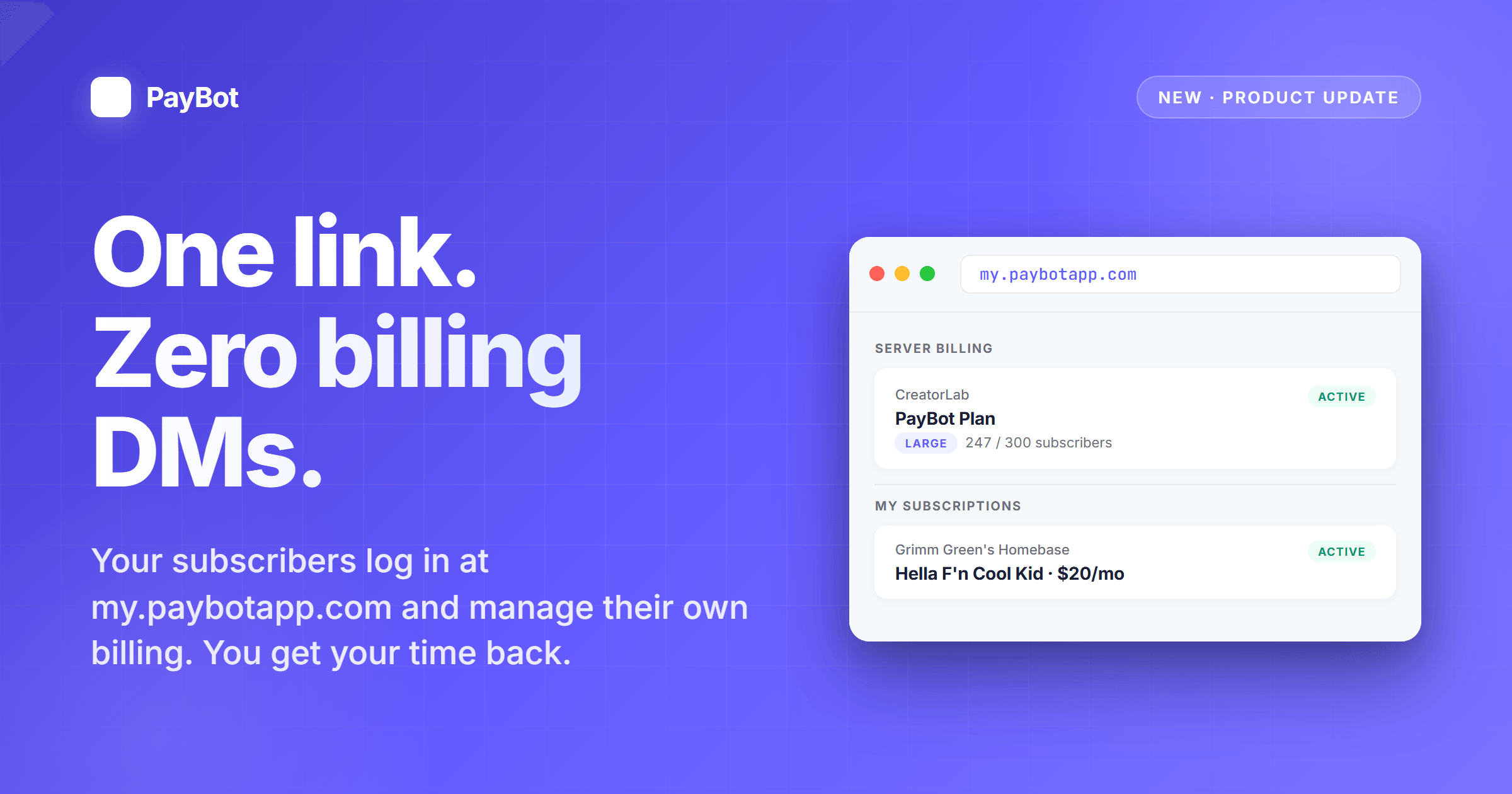
Every PayBot subscriber can use this single URL. They click, log in with Discord, and land on a page that shows exactly one thing: their subscription to your server, with the tier, the price, the status, and a Subscription & Invoices button that routes them to the Stripe Customer Portal on your connected account.
From that portal they update their card, download invoices, cancel, and reactivate. It’s every billing action Stripe was designed to let them do in the first place. You stop fielding “how do I update my card?” DMs at 11pm, and you stop hunting through Stripe for old receipts when a subscriber needs one for her taxes.
Share It From /setup
Run /setup, open the Settings dropdown, choose Payment Settings, then Subscriber Billing.
You get three things:
- The URL itself, right there in the ephemeral, ready to select and copy
- An Open Portal button that launches my.paybotapp.com so you can verify it works from your own account
- A Copy Snippets button that opens a public page with three copy-ready options: a direct link, an HTML link, and a styled button with all CSS inline so it drops into any site without touching a stylesheet
The snippets page is public and doesn’t require login. Copy the one you want, then paste it wherever your subscribers go when they need billing help.
Admins Get Their Own Dashboard
Here’s the part we didn’t plan for and now love. When you log in to my.paybotapp.com as a PayBot admin, the portal adds a second section above the regular subscriber view.
The first section is Server Billing, which lists the servers you run that have a PayBot billing plan. Each one shows up as a card with a Plan & Invoices button that opens your billing portal on Stripe. It’s the same flow a subscriber goes through, just pointed at the platform account where your PayBot billing lives.
The second section is My Subscriptions, which shows any PayBot-powered server you personally subscribe to as a regular user. Same cards, same layout, your own subscriptions only.
PayBot figures out which guilds you administer by asking Discord at login time, then matching that list against servers with active admin plans. You only see Server Billing for guilds you actually run.
Why This Matters
Every billing DM is friction on your time. Every “I need an invoice” ping is five minutes of context-switching you won’t get back. Every “how do I cancel?” message is a conversation that should have been one click on a page built for exactly this purpose.
So we built the page and put your name on it. Share the link, let Stripe do what it was designed to do, and get your time back to run your community.
Ready to share it? Run /setup → Settings → Payment Settings → Subscriber Billing.
Not using PayBot yet? Get started free. See how the Discord subscription bot handles recurring billing automatically, or read the playbook for creating a paid Discord server.